
Alerts
The Alerts system is one of the most advanced features of the Smart Signals Assistant. It transforms the indicator from a simple visual guide into a fully automated monitoring tool. Instead of watching the charts all day, you can build a precise set of rules and have TradingView notify you only when your exact conditions are met.
Quick Steps (how to set alerts):
- Open the indicator settings
- Set up alert conditions under the "ALERTS" section
- Ensure conditions are enabled (at least 1 condition is checked)
- Verify the conditions are working as intended by enabling "Show Historical Alerts"
- You should see small gray squares at the bottom of the chart that only turn red when the condition is triggering
- Enable TradingView's alert (see "Setting Alerts on TradingView" section)
The Logic Engine: Steps and Conditions
The alert engine is structured around a sequence of up to 7 Steps. For an alert to fire, all configured steps must be completed in order. Each step, in turn, can be composed of multiple Conditions.
- Step: A stage in your alert sequence. Step 1 must be completed before the system starts looking for Step 2, and so on.
- Condition: A specific rule that must be met. Each of conditions 1–7 can be enabled, assigned a condition type, optional AND/OR (except condition 1’s boolean, which is fixed), and a step (1–7). Only steps that have at least one enabled condition take part in the sequence, in numeric order (e.g. you can use steps 1 and 3 only — empty step numbers are skipped).
- Boolean Operator (AND/OR): Within a single step, you can combine multiple conditions using AND (all conditions must be true) or OR (at least one condition must be true).
Hint: How the Alert Logic Works
The alert system evaluates conditions for any given step in a specific order. Understanding this is key to building complex alerts correctly.
- Hierarchy is by Number: The system processes conditions based on their input number (Condition 1, then Condition 2, then 3, and so on), not the order you enable them.
- Boolean Chaining: The
AND/ORboolean operator for a condition connects it to the logical expression that comes before it in the sequence. - First Boolean is Ignored: Because of this chaining, the boolean setting for the very first enabled condition in any step's sequence is always ignored, as there is no expression before it to connect to (this is why Condition 1 has no boolean input option).
Example: Imagine for Step 1 you enable (all assigned to Step 1):
Condition 2(set to OR)Condition 4(set to AND)Condition 5(set to OR)
The final logic will be evaluated as: (Condition 2) AND (Condition 4) OR (Condition 5). The OR from Condition 2 was ignored. The logic used the AND from Condition 4 and the OR from Condition 5.
Example Scenario: Imagine you want an alert for a high-probability bullish reversal. Your rules might be:
- The market must be in a Trending regime (TRC is blue).
- The price must have just left the Firmament Support Cloud.
- A Smart Signals Bullish Reversal signal (▲) must appear.
You would configure this as a 3-step alert:
- Step 1: Condition =
TRC Is Trending [State] - Step 2: Condition =
Price Exits Lower Cloud [Trigger] - Step 3: Condition =
Smart Signals ▲ Fires [Trigger]
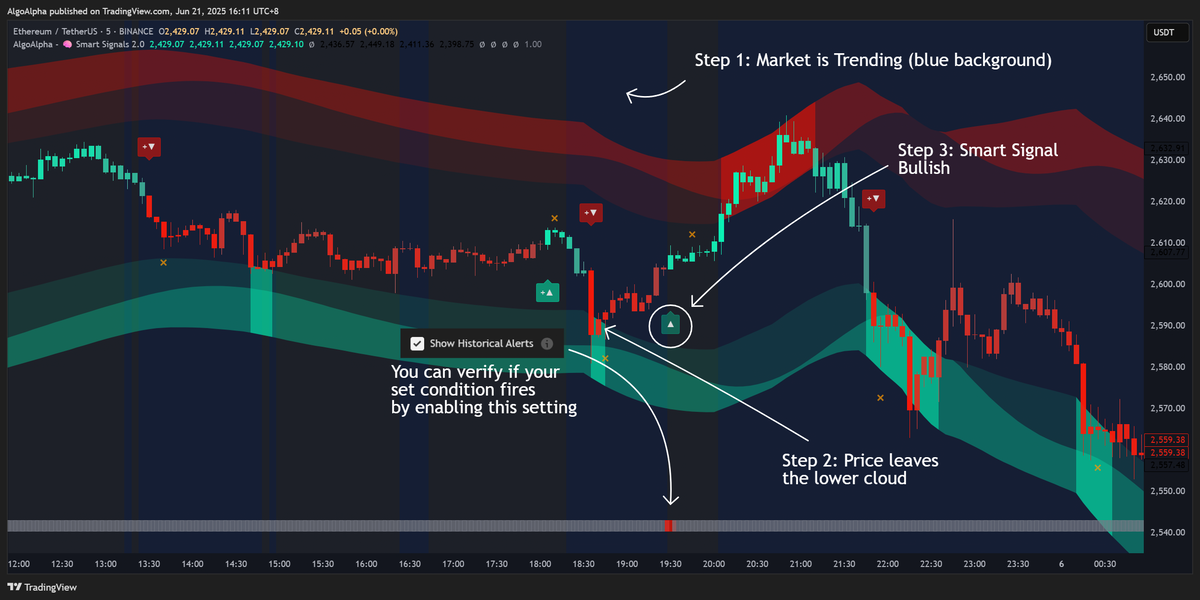
The alert will only fire if these three events happen in this exact sequence.
Condition Types: Triggers vs. States
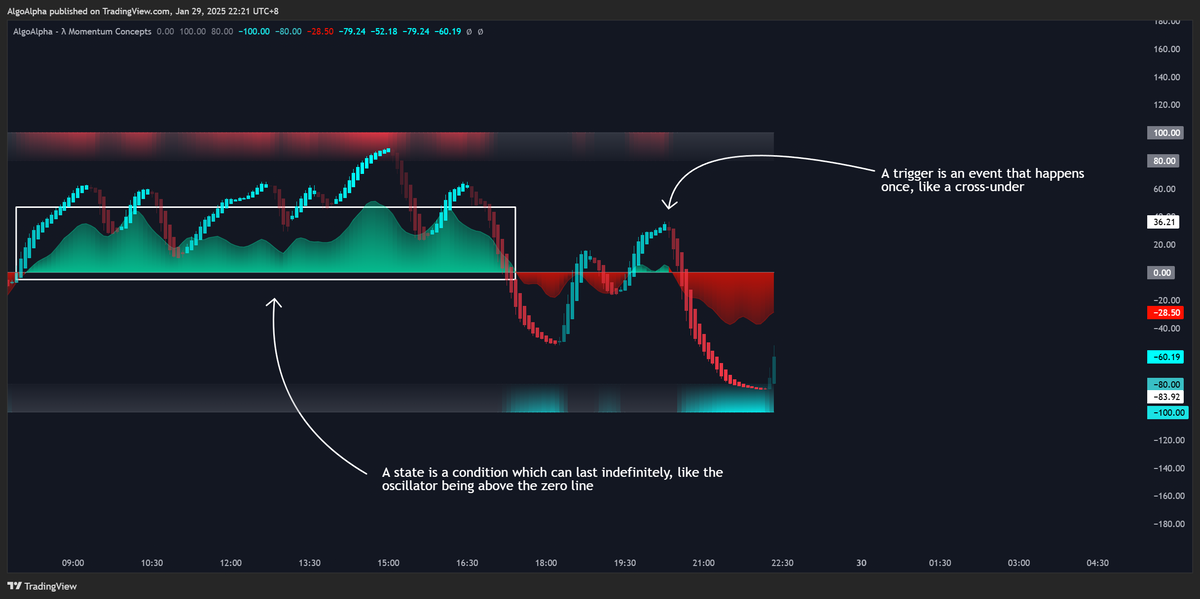
It's crucial to understand the difference between a Trigger and a State.
- Trigger Conditions: These are events that happen on a single bar. They are "true" for only one moment.
- Example:
Smart Signals ▲ Fires [Trigger]. This is only true on the exact bar where the ▲ appears.
- Example:
- State Conditions: These are ongoing conditions that can be true for many bars.
- Example:
FVT Is Bullish [State]. This is true for as long as the Fair Value Trail remains bullish.
- Example:
See below for a full list of all the available states and triggers and what they do.
Best Practice: A robust alert often combines states and triggers. Use state conditions in the earlier steps to define the ideal market environment, and use a trigger condition in the final step to signal your entry.
Setting Alerts on TradingView
After configuring your desired conditions on our indicator's settings, here's how to set it up on TradingView.
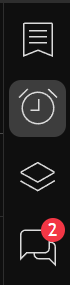
- Click on the clock icon at the right hand side of your TradingView chart
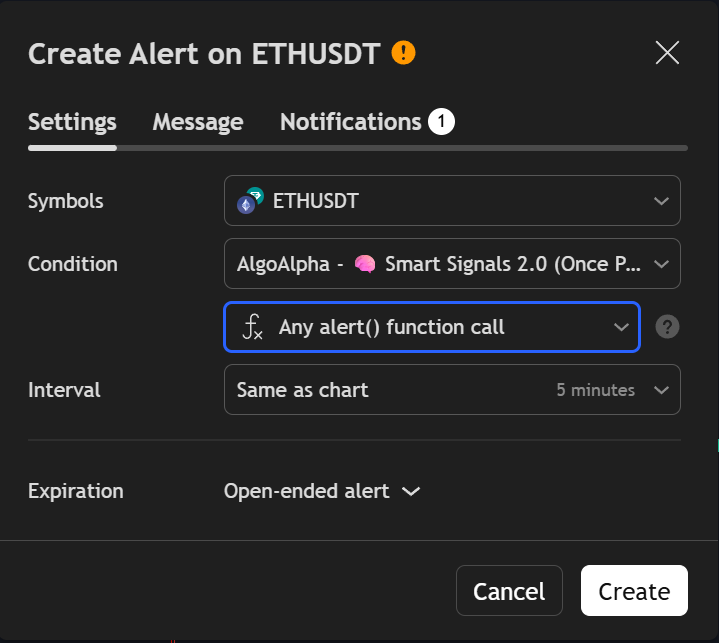
- Under Condition, select the chart’s Smart Signals Assistant script (e.g. AlgoAlpha - 🧠 Smart Signals 2.0 — exact wording matches your chart/indicator list), then ƒ(𝑥) Any alert() function call.
- Click 'Create'
Tip: You can create multiple alerts by first configuring the conditions on our indicator, then creating an alert following the steps above. After the 'Create' button is pressed, you can open the Smart Signals Assistant settings again and change the conditions for your next alert. The previously created alert will be saved and won't be affected by the settings changes.
Settings Reference: Alerts Group
Show Historical Alerts
- Default: Off
- Description: When enabled (and at least one alert condition is on), the indicator shows small squares at the bottom of the chart — red on bars where the full alert would have fired, gray otherwise — and an “Alert Will Trigger When:” summary table that lists your step logic. This helps backtest and refine rules without waiting for live triggers.
- Warning: If you enable "Show Historical Alerts" without enabling at least one alert condition, a warning message will be displayed on the chart reminding you to configure conditions.
Condition 1–7 Settings
Each condition has the following inputs:
- Enable Checkbox: Activates or deactivates this condition.
- Condition Type: The dropdown menu where you select the specific trigger or state from any of the indicator's components (Smart Signals, FVT, Trend Spine, etc.).
- Boolean: (AND/OR) Defines how this condition relates to other conditions within the same step. (Excluding Condition 1, which has no boolean input.)
- Step: Assigns this condition to one of the steps (1–7) in the sequence.
Smart Signals Assistant: Available Alert Condition Options
Smart Signals Conditions
| Condition Option | Description |
|---|---|
| Smart Signals ▲ Fires [Trigger] | Triggers when a standard bullish signal (▲) appears on the chart. |
| Smart Signals ▼ Fires [Trigger] | Triggers when a standard bearish signal (▼) appears on the chart. |
| Smart Signals ▲/▼ Fires [Trigger] | Triggers when either a standard bullish or bearish signal appears. |
| Smart Signals +▲ Fires [Trigger] | Triggers when a strong bullish signal (+▲) appears, indicating higher conviction. |
| Smart Signals +▼ Fires [Trigger] | Triggers when a strong bearish signal (+▼) appears, indicating higher conviction. |
| Smart Signals +▲/+▼ Fires [Trigger] | Triggers when either a strong bullish or strong bearish signal appears. |
| Smart Signals Is Bullish [State] | True as long as the main trend direction is bullish (e.g., green candles). |
| Smart Signals Is Bearish [State] | True as long as the main trend direction is bearish (e.g., red candles). |
| Smart Exits ✕ Long [Trigger] | Triggers when an exit signal (x) appears during a bullish trend. (Trend Mode only.) |
| Smart Exits ✕ Short [Trigger] | Triggers when an exit signal (x) appears during a bearish trend. (Trend Mode only.) |
| Smart Exits ✕ Long/Short [Trigger] | Triggers when any exit signal (x) appears, regardless of trend direction. (Trend Mode only.) |
| Smart Exits ✕ Long < Max [State] | True if in a bullish trend and the number of exit signals is less than the Max Exit Signals setting. |
| Smart Exits ✕ Short < Max [State] | True if in a bearish trend and the number of exit signals is less than the Max Exit Signals setting. |
| Smart Exits ✕ Any < Max [State] | True as long as the number of exits since the last entry is less than the Max Exit Signals setting. |
Fair Value Trail Conditions
| Condition Option | Description |
|---|---|
| FVT Turns Bullish [Trigger] | Triggers when the FVT flips from bearish to bullish. |
| FVT Turns Bearish [Trigger] | Triggers when the FVT flips from bullish to bearish. |
| FVT Flips [Trigger] | Triggers on any FVT direction change. |
| FVT ▲ OptEntry [Trigger] | Triggers when price pulls back to the bullish FVT trail (optimal entry zone). |
| FVT ▼ OptEntry [Trigger] | Triggers when price pulls back to the bearish FVT trail (optimal entry zone). |
| FVT ▲/▼ OptEntry [Trigger] | Triggers on either bullish or bearish optimal entry signals. |
| FVT Is Bullish [State] | True as long as the FVT is in a bullish (cyan) trend. |
| FVT Is Bearish [State] | True as long as the FVT is in a bearish (red) trend. |
Trend Spine Conditions
| Condition Option | Description |
|---|---|
| Trend Spine Turns Bullish [Trigger] | Triggers when the Trend Spine line flips from bearish/neutral (red/gray) to bullish (green). |
| Trend Spine Turns Bearish [Trigger] | Triggers when the Trend Spine line flips from bullish/neutral (green/gray) to bearish (red). |
| Trend Spine Flips [Trigger] | Triggers when the Trend Spine line flips from bullish to bearish, or vice-versa. |
| Trend Spine Is Bullish [State] | True as long as the Trend Spine line is bullish (green). |
| Trend Spine Is Bearish [State] | True as long as the Trend Spine line is bearish (red). |
| Trend Spine Is Trending [State] | True as long as the Trend Spine line is either bullish (green) or bearish (red). |
| Trend Spine Is Ranging [State] | True as long as the Trend Spine line is neutral (gray). |
Trend Bias Conditions
| Condition Option | Description |
|---|---|
| Trend Bias Strong Bullish [Trigger] | Triggers when bullish momentum strengthens (oscillator crosses above its MA). |
| Trend Bias Strong Bearish [Trigger] | Triggers when bearish momentum strengthens (oscillator crosses below its MA). |
| Trend Bias Strong Bull/Bear [Trigger] | Triggers on either of the "Strong" conditions above. |
| Trend Bias Weak Bullish [Trigger] | Triggers when bullish momentum weakens (oscillator crosses below its MA). |
| Trend Bias Weak Bearish [Trigger] | Triggers when bearish momentum weakens (oscillator crosses above its MA). |
| Trend Bias Weak Bull/Bear [Trigger] | Triggers on either of the "Weak" conditions above. |
| Trend Bias Is Strong Bullish [State] | True while bullish momentum is strong. |
| Trend Bias Is Strong Bearish [State] | True while bearish momentum is strong. |
| Trend Bias Is Weak Bullish [State] | True while bullish momentum is present but weakening. |
| Trend Bias Is Weak Bearish [State] | True while bearish momentum is present but weakening. |
| Trend Bias Is Bullish [State] | True as long as the bias oscillator is positive (bullish). |
| Trend Bias Is Bearish [State] | True as long as the bias oscillator is negative (bearish). |
Firmament Cloud Conditions
| Condition Option | Description |
|---|---|
| Price Enters Upper Cloud [Trigger] | Triggers when price crosses up into the upper (red) cloud resistance zone. |
| Price Enters Lower Cloud [Trigger] | Triggers when price crosses down into the lower (green) cloud support zone. |
| Price Enters Upper/Lower Cloud [Trigger] | Triggers on either of the "Price Enters" conditions above. |
| Price Exits Upper Cloud [Trigger] | Triggers when price crosses down out of the upper (red) cloud zone. |
| Price Exits Lower Cloud [Trigger] | Triggers when price crosses up out of the lower (green) cloud zone. |
| Price Exits Upper/Lower Cloud [Trigger] | Triggers on either of the "Price Exits" conditions above. |
| Price In Upper Cloud [State] | True as long as the price is inside the upper (red) cloud. |
| Price In Lower Cloud [State] | True as long as the price is inside the lower (green) cloud. |
| Price In Upper/Lower Cloud [State] | True as long as the price is inside either the upper or lower cloud. |
| Price Above All Clouds [State] | True as long as the price is above the upper (red) cloud. |
| Price Below All Clouds [State] | True as long as the price is below the lower (green) cloud. |
| Price Between Cloud Bands [State] | True as long as the price is between the upper and lower clouds (in the "channel"). |
Trend-Range Classifier Conditions
| Condition Option | Description |
|---|---|
| TRC Trending [Trigger] | Triggers when the classifier detects the market has shifted into a trending regime. |
| TRC Ranging [Trigger] | Triggers when the classifier detects the market has shifted into a ranging regime. |
| TRC Flips [Trigger] | Triggers on any regime change (trending to ranging or vice-versa). |
| TRC Is Trending [State] | True as long as the classifier identifies the market as trending. |
| TRC Is Ranging [State] | True as long as the classifier identifies the market as ranging. |