
Echo Guide (Scalping)
Echo is a trading bot developed to automatically execute scalping signals from AlgoAlpha on supported exchanges. This guide will walk you through supported exchanges, setting up API keys, trading parameters, and important requirements to keep the bot running smoothly.
Supported Exchanges
- Available: Bybit, Binance, Bitget
When using Bitget, users must set the API password parameter to 'algoalpha' (without quotes)
- Coming Soon: MEXC
- TBD: Coinbase, Kucoin, Okex
Setting Up Exchange API Keys
- Creating Your API Key: Go to Bybit and create an account. Visit Bybit's API Management Dashboard and create an API key. Below are the settings for the API key.
- Choose a System Generated Key
- Under 'API Key Usage', choose API Transaction (Not Connect to Third-Party Applications)
- Under name for the API key, type in a name of your choice
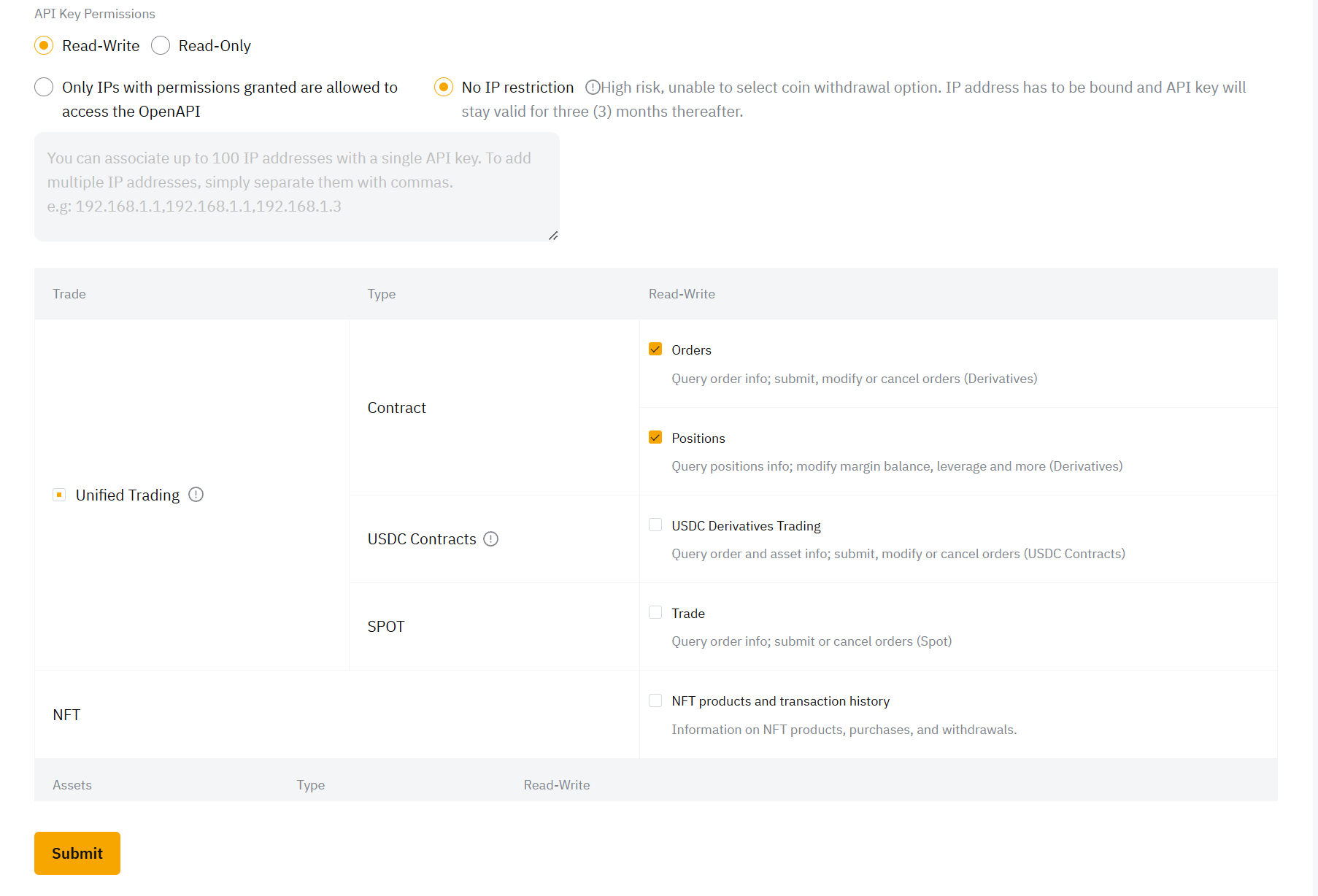
- Under 'API Key Permissions', choose Read-Write, No IP restriction
- Under 'API Key Permissions' (cont.), select Unified Trading
- Under 'API Key Permissions' (cont.), under 'Contract', select Orders, Positions
- Press 'submit', you should be prompted to go through security verification after which you will be given an API key along with the API secret. ⚠️Record them down as you will only be able to view them on Bybit only once.
Make sure to not enable settings that could put your funds at risk, such as settings like Account Transfer and Withdrawals
If you'd like to whitelist Echo's IP address, you can do so by whitelisting 51.38.70.136
If you're using Bybit, we support USDC, in which case you should enable USDC Derivatives Trading
Setting Up Echo
- Create API Key: Go to AlgoAlpha's Echo dashboard, be sure to be logged into your account.
- Under 'Exchange', select Bybit.
- Fill in the 'API Key' and 'API Secret' fields using the API key you created.
- Press 'Save API Settings'
- Configuring Echo:
- Under 'Stablecoin', select USDT
- Under 'Order Type', there should only be one option called Market.
- Once everything is set, press 'Save Settings'.
Note that Take Profit and Stop Loss, Risk per Trade, Leverage are all automated by Echo.
Avoid mixing your own trades with Echo on the same account, it may lead to loss of funds due to miscalculated account risk
Starting and Managing Echo
- Starting the Bot: Once all settings are configured, Press save. Echo will automatically execute trades based on signals from 🔔│scalping-signals.
- Updating Settings: If any settings are modified, be sure to press the save button.
- All Trade History can be seen on your exchange.
Requirements for Reliable Operation
To ensure smooth functioning, Echo requires:
- An active AlgoAlpha Signals or VIP Bundle subscription
- USDT or USDC (only for Bybit) as the Trading Stablecoin
- Demo Account disabled
- Funds are in Unified Trading Account
Additional Resource
- Support and Feedback: For feature requests, bug reports, or setup help, enter our Discord server and open a support ticket there.
With these guidelines, you’re set to begin automated trading with Echo. Happy trading!