
Smart Exits
Identifying a good entry is only half the battle. Successful trading requires a disciplined approach to managing your position after it's open. The Trade Management module provides a suite of tools designed to help you plan your exits, secure profits, and control risk systematically.
These tools are automatically activated when a Smart Signal (▲, ▼, +▲, or +▼) appears on the chart, providing a clear visual plan for the entire lifecycle of the trade.
Important: The Smart Exits features (Exit Signals, Take-Profit, and Stop-Loss levels) are designed for Trend Mode only. When using Reversal Mode, Exit Signals are automatically disabled and will not appear on the chart. Take-Profit and Stop-Loss levels will still be plotted when their respective toggles are enabled.
1. Exit Signals
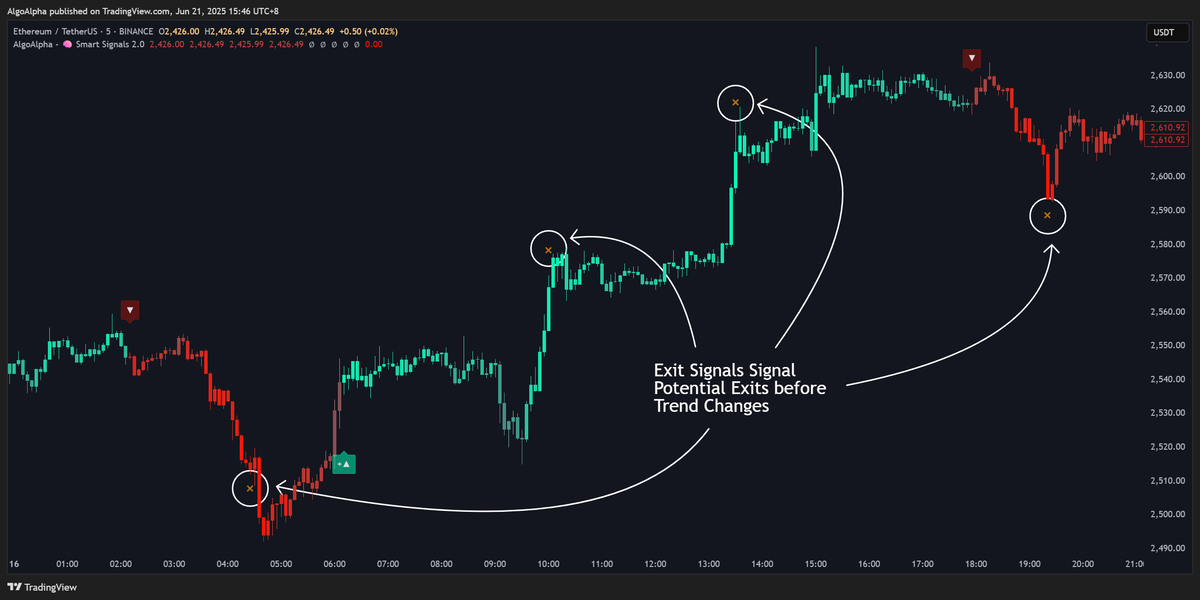
What it is: Exit Signals are automated suggestions for when to close a position. They are not based on fixed profit targets but on changing market conditions. The indicator uses momentum to detect when a trend is likely getting exhausted, signaling potential exhaustion.
Note: Exit Signals are only available in Trend Mode. They are automatically disabled in Reversal Mode.
How to Interpret it:
- Orange 'x' above a candle: This is a bullish exit signal. It suggests that the current uptrend is losing momentum and it may be a good time to close a long position.
- Orange 'x' below a candle: This is a bearish exit signal. It suggests that the current downtrend is losing steam and it may be a good time to close a short position.
How to Use it:
- Primary Exit Strategy: You can use these 'x' marks as your primary signal to exit a trade, regardless of whether your profit targets have been hit.
- Scaling Out: The indicator can plot multiple exit signals. You could use the first 'x' to take some profit off the table and trail your stop-loss on the remainder of the position, waiting for a second 'x' to close it entirely.
Settings:
- Exits Signals: The master switch to turn this feature on or off.
- Max Exit Signals: Sets the maximum number of 'x' marks that can appear for a single trade, allowing for multi-stage exit strategies.
2. Take-Profit (TP) and Stop-Loss (SL) Levels
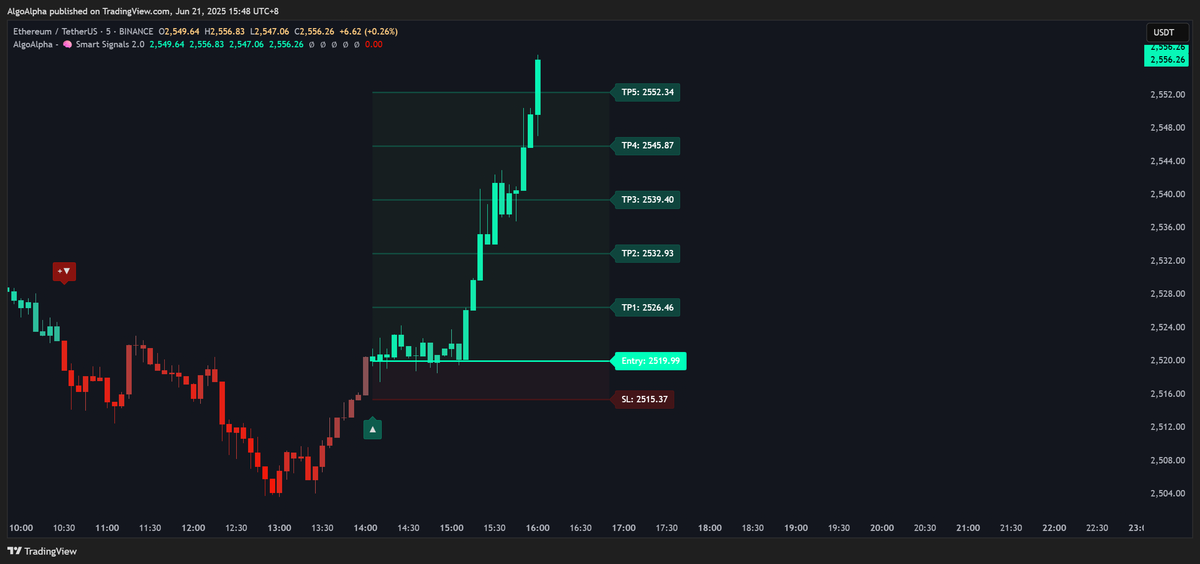
What it is: When a Smart Signal appears, the indicator can automatically project Take-Profit and Stop-Loss levels on your chart. These levels are calculated using a dynamic risk-to-reward framework, creating a clear visual plan for every trade.
How to Interpret it:
- Green/Red Entry Line: Marks the price where the signal occurred.
- Green TP Lines: These are your profit targets. You can have up to 5 levels for scaling out of a position.
- Red SL Line: This is your suggested stop-loss level, representing your maximum risk on the trade.
- Green/Red Zones: The colored zones between the entry, SL, and TP lines provide a clear visual of the potential risk (red zone) and reward (green zone) for the trade.
How to Use it:
- Set-and-Forget Strategy: Use these levels to place firm limit orders for your take-profits and stop-loss with your broker.
- Partial Profits: If you configure multiple TP levels, you can systematically take profits as each level is reached. For example, close 25% of your position at TP1, 50% at TP2, and let the rest run.
- Risk Management: The SL level provides a clear, data-driven point of invalidation for your trade idea. Respecting this level is key to long-term risk management.
TP/SL Distance Type
You can choose how the distance between entry and your TP/SL levels is calculated using the TP/SL Distance Type setting:
- Volatility (Default): Distances are based on the ATR (Average True Range), which adapts dynamically to the asset's current volatility. In volatile markets, levels will be placed further from the entry; in calm markets, they will be tighter. This is the recommended setting for most use cases.
- Percentage: Distances are calculated as a fixed percentage of the entry price. This provides consistent, predictable level placement regardless of market volatility. For example, with a Stop-Loss Distance Multiplier of 1.0 in Percentage mode, the stop-loss is placed 1% from the entry price.
Settings:
- Take-Profit Levels: Enables or disables the plotting of TP lines and the green reward zone.
- Stop-Loss Level: Enables or disables the plotting of the SL line and the red risk zone.
- TP/SL Distance Type: Choose between Volatility (ATR-based, dynamic) or Percentage (fixed percentage from entry).
- Take-Profit Target Count: Sets the number of TP lines to display (from 1 to 5).
- Take-Profit Distance Multiplier: This number controls the distance to your TP levels.
- When Volatility is selected: Acts as a multiplier on the ATR-derived distance. Higher values place targets further away.
- When Percentage is selected: Directly sets the percentage distance from entry. For example, 3.3 means TP levels are distributed across a 3.3% range from the entry price.
- Stop-Loss Distance Multiplier: This number controls the distance to your SL level.
- When Volatility is selected: Acts as a multiplier on the ATR-derived distance. Higher values create wider stops.
- When Percentage is selected: Directly sets the percentage distance from entry. For example, 1.0 means the stop-loss is placed 1% from the entry price.