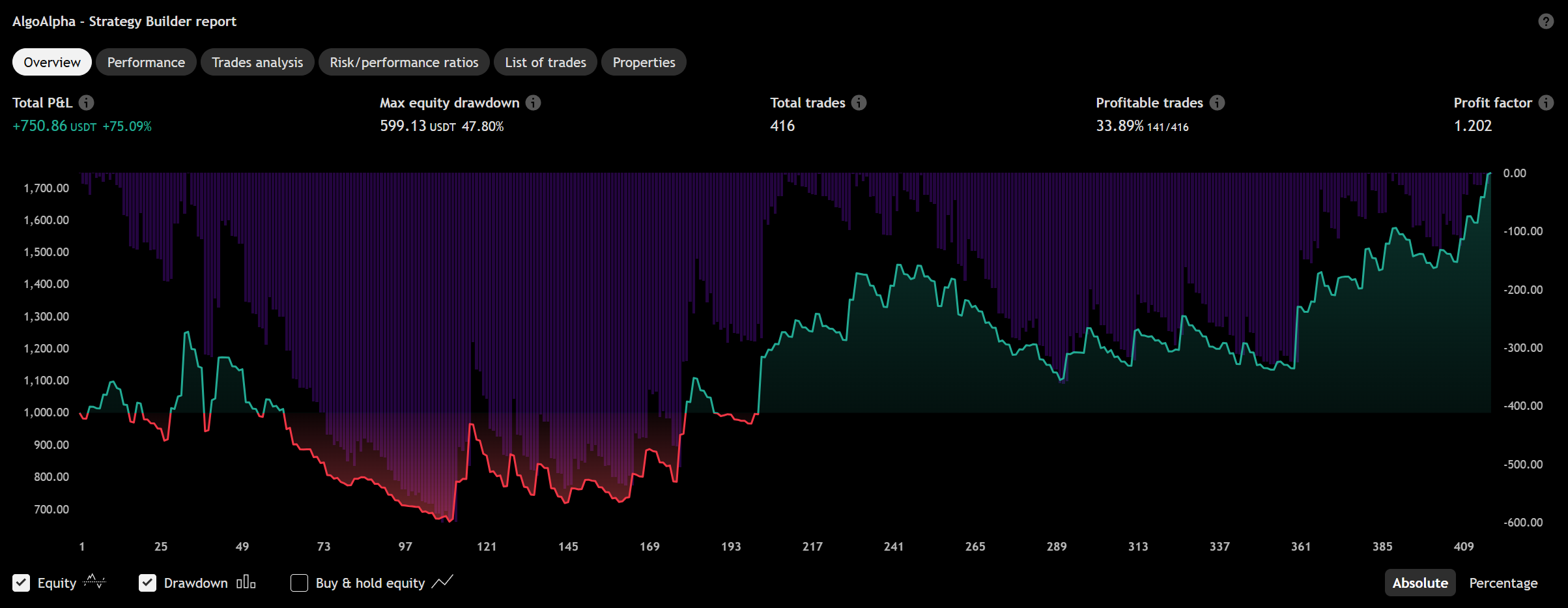
Premium indicatorsBacktest strategy builder
How to Use
How to Use the Strategy Builder
Follow these steps to configure and run a backtest.
Step 1: Add Indicators to Chart
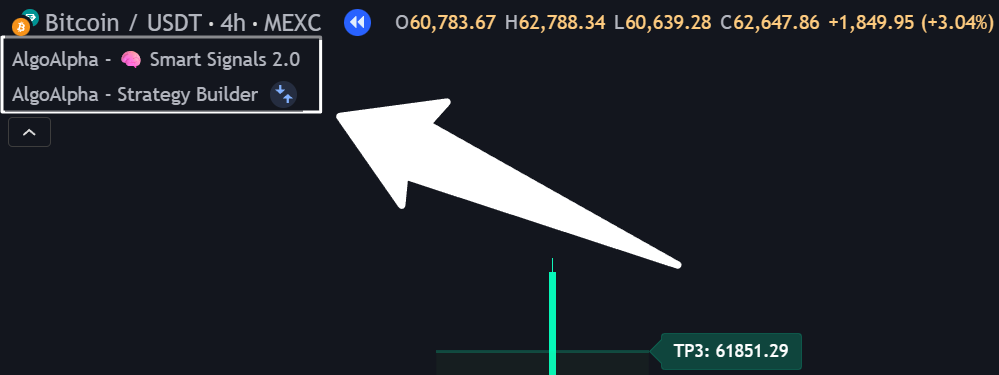
- Add the Backtest - Strategy Builder to your chart, along with any indicator you wish to use as a signal source (e.g., Smart Signals Assistant).
Step 2: Configure Master Settings
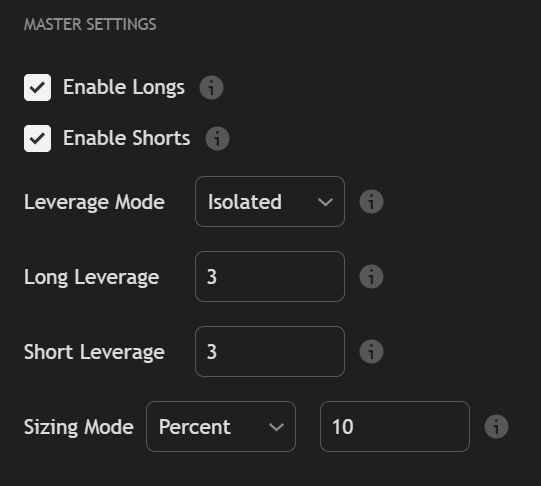
In the backtester settings, configure the core parameters:
- Enable Longs/Shorts: Global switches to allow long or short trading.
- Leverage Mode:
Isolated(risk is limited to the allocated margin) orCross(entire account equity backs the position). - Leverage & Sizing: Set your leverage multipliers and choose whether to size positions by a
Percentof equity or anAbsolute USDamount.
Step 3 (Optional — Manual Mode only): Define External Signals (Condition Setup)
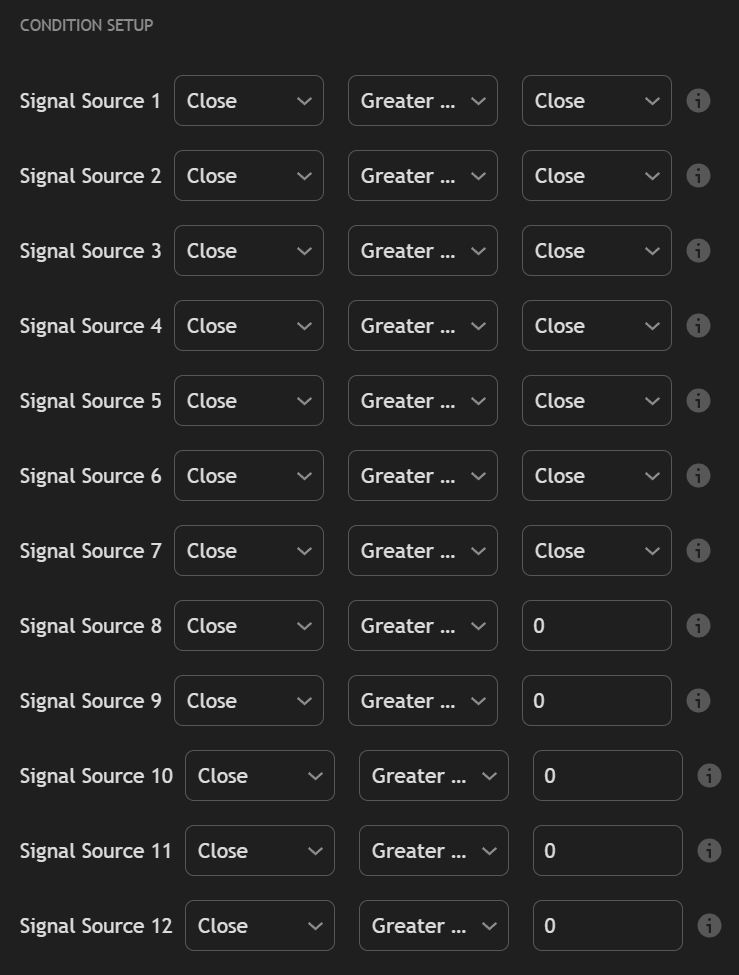
If you want to use indicators outside the AlgoAlpha suite (custom EMAs, third-party RSI scripts, etc.), first disable Use Atlas in the "Atlas Strategy Conditions" group to switch to Manual Mode. SSA, ILPAC, and MC signals do not need to be wired here — they appear directly in the Condition dropdown for each trigger.
For each of the 6 "External Signal" slots:
- Set the Source: Select the indicator plot you want to use (e.g.,
closeprice). - Choose the Operator: Select the comparison logic (e.g.,
crossover,Greater than). - Set the Value: Select the plot or enter the static value to compare against.
Step 4: Build Entry & Exit Logic
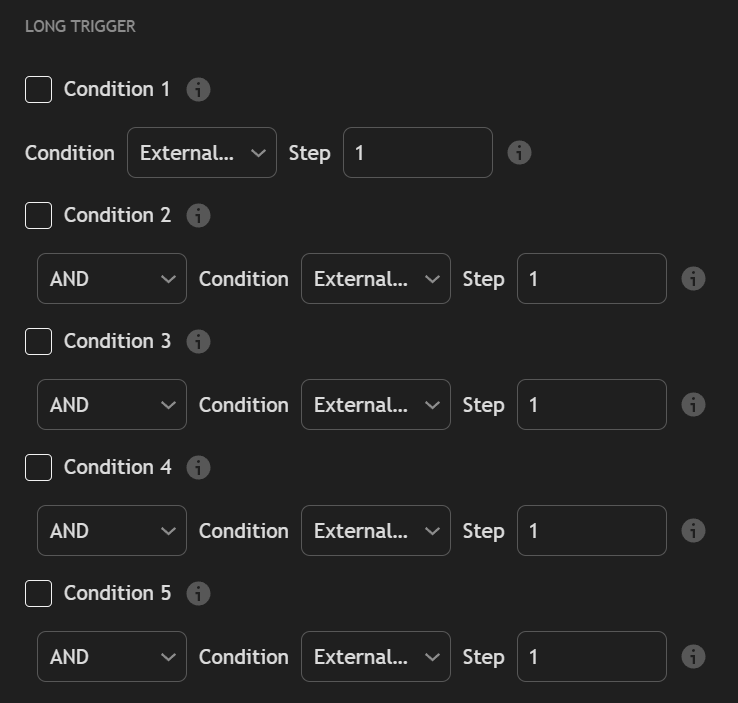
In the Long Trigger, Short Trigger, Exit Long Trigger, and Exit Short Trigger sections:
- Enable a Condition: Check the box to activate it.
- Select the Signal: Choose the External Signal (e.g., "External Signal 1") you defined in Step 3.
- Set Logic (
AND/OR): Determine how this condition combines with others in the same step. - Assign to a Step (1-5): Define the sequence order.
Step 5: Configure Exits (TP, SL, Flips)
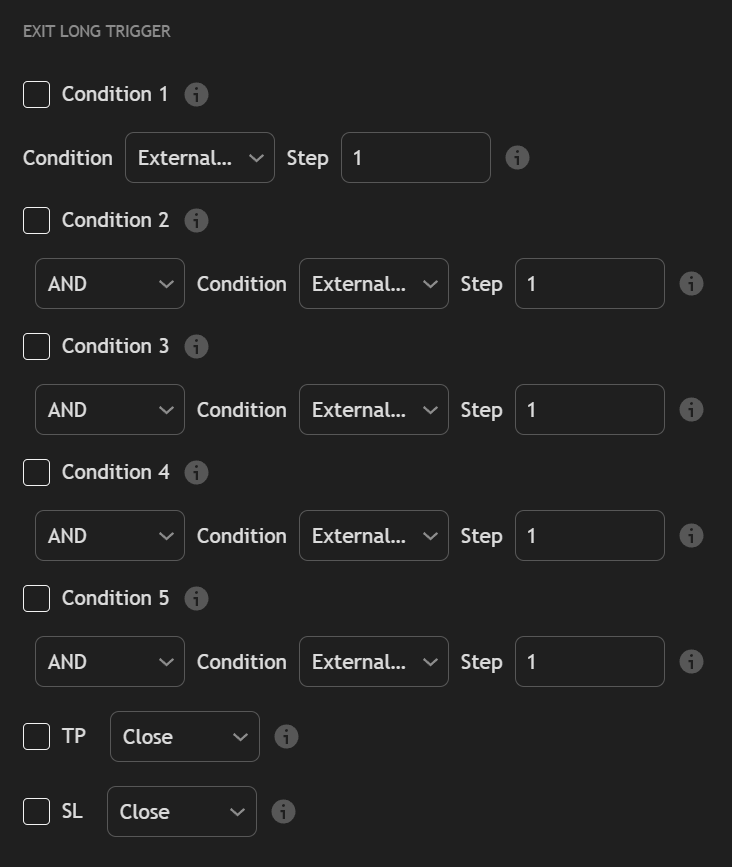
- Take-Profit/Stop-Loss: Enable
TPorSLand link them to an indicator plot for dynamic levels. The system will always use the tighter of your SL or the calculated liquidation price. - Strategy Flips: To close a position and immediately open one in the opposite direction, set an exit condition to
Short Entry Trigger(for closing longs) orLong Entry Trigger(for closing shorts).
Step 6: Analyze Results
The strategy will run on your chart. Use the on-chart Dashboard for a live performance summary and TradingView's Strategy Tester panel for a detailed trade-by-trade report.